


MAX7219 Arduino: Matrix Wiring, Code and 7 Checks

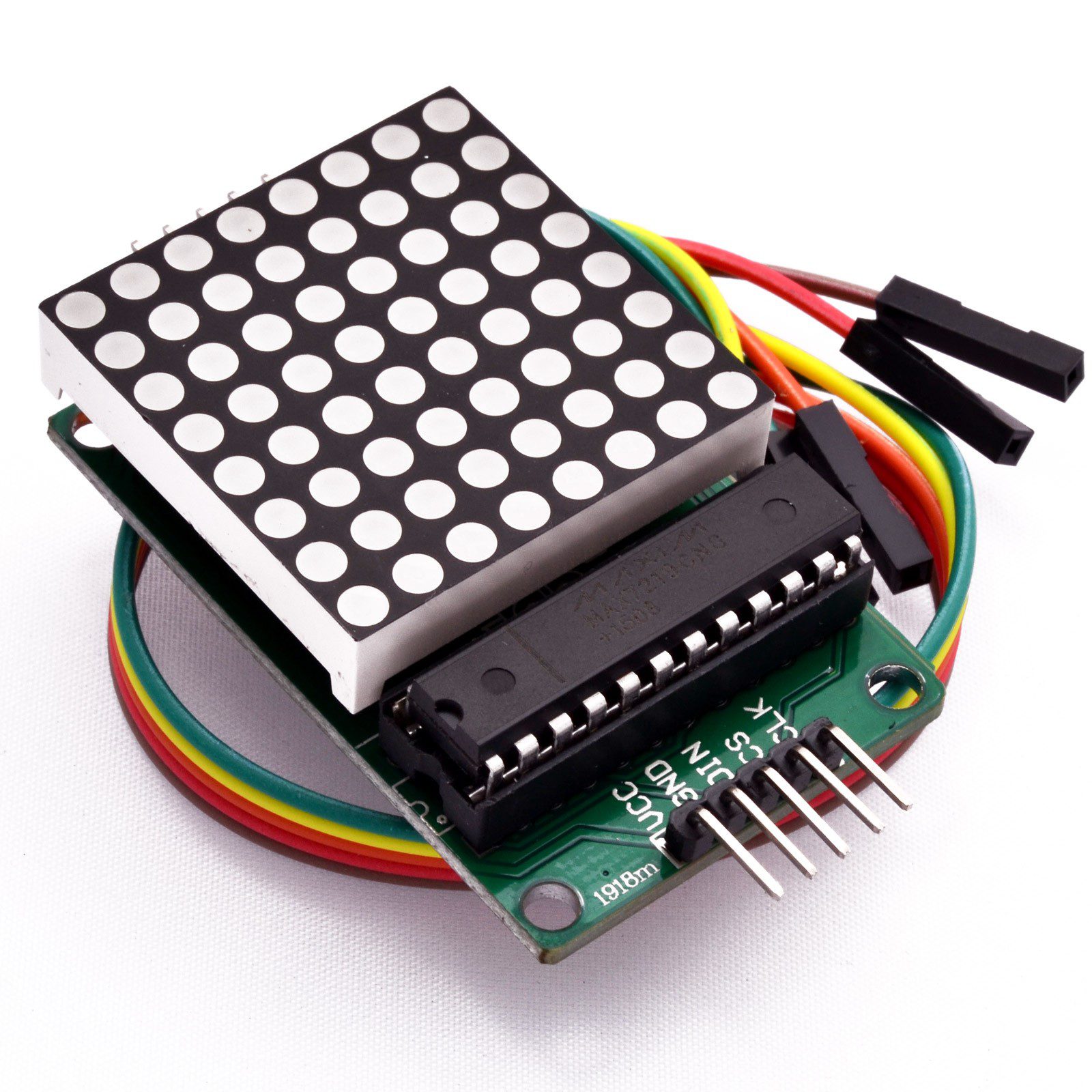
A MAX7219 Arduino test should begin with one matrix and a small moving pattern. That makes it easier to identify supply problems, reversed connector direction and display orientation before adding scrolling text or multiple drivers.
This tutorial uses a conventional 5 V Uno-compatible board and one 8×8 module. It is educational starter code, not a tested full-brightness power design or a complete four-module scrolling sign.

1. Identify the module input side
Find VCC, GND, DIN, CLK and CS or LOAD on the input connector of the actual MAX7219 matrix module. DOUT belongs to the output side for a subsequent driver. Do not connect the controller’s data signal to that output.
Power must be disconnected while wiring. Check the supply markings on the actual board; the current single-module listing specifies 4.7–5.3 V. This Uno example does not establish safe direct logic connections from an ESP32 to a 5 V MAX7219.
2. Wire the MAX7219 Arduino signals and power
| Module input | Test connection |
|---|---|
| DIN | Uno D12 |
| CLK | Uno D11 |
| CS / LOAD | Uno D10 |
| VCC | Suitable regulated 5 V display supply |
| GND | Display supply ground and Uno GND |
Power the Uno from USB for programming and connect the separate display supply’s ground to Uno ground. Do not also join the external supply’s positive output to the USB-powered Uno’s 5 V rail. This avoids casually paralleling supplies or creating a backfeed path.
Size the display supply and wiring for the module’s specified demand, not only this sparse test image. Use a properly protected low-voltage source. Stop if wiring or components heat unexpectedly; software brightness is not a substitute for a sound power arrangement.
3. Install LedControl
Install LedControl by Eberhard Fahle through Arduino Library Manager. The library interface defines the constructor order as data, clock, chip select and number of devices.
These are software-controlled pins in this example, so they should be wired exactly as shown rather than substituted with a different tutorial’s hardware-SPI pin names. Select the proper Uno board and serial port before uploading.Newest in the store


4. Upload a one-LED-at-a-time example
#include <LedControl.h>
LedControl matrix(12, 11, 10, 1);
void setup() {
  matrix.shutdown(0, false);
  matrix.setIntensity(0, 1);
  matrix.clearDisplay(0);
}
void loop() {
  for (byte row = 0; row < 8; row++) {
    matrix.clearDisplay(0);
    matrix.setLed(0, row, row, true);
    delay(250);
  }
}
The driver address zero refers to the first device in the configured chain; it is not an I2C address. The program wakes that device, selects a low intensity and moves one illuminated position along the logical diagonal.
5. Observe the physical orientation
The visible diagonal may run in a different direction from an illustration because matrix wiring and board orientation vary. Record what row zero and column zero mean on the module in hand. A mirrored pattern is not necessarily a failed driver.
Do not reverse supply wiring to change the picture. Coordinate mapping or the physical mounting arrangement should handle orientation. Establish the mapping with isolated pixels before using a font or animation whose mistakes are harder to trace.
6. Diagnose a blank or unstable matrix
If nothing lights, recheck supply, common ground, input connector direction and constructor pin order. The shutdown call must select normal operation. If the display resets or flickers as more LEDs are added, measure the supply at the module under load and inspect the wiring.
An I2C scanner will not discover this serial display. Do not add random I2C addresses or change the current-setting resistor as a first response. Consult the driver datasheet when reviewing electrical requirements.
7. Expand the chain deliberately
The sketch configures one driver only. A four-in-one board needs the correct driver count, addressing, layout and power budget. The MAX7219 display buying guide explains those choices before a larger pattern or scrolling-text project is attempted.