


16×2 LCD Arduino Code: I2C Wiring and 7 Checks

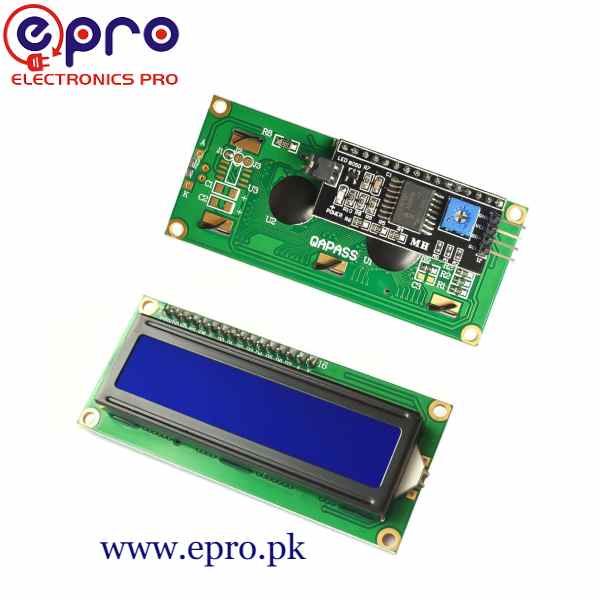
This 16×2 LCD Arduino code example prints a fixed message on a compatible I2C-backpack display. Starting with known text makes troubleshooting easier than immediately combining a sensor, keypad and menu program.
The wiring below is for a conventional 5 V Uno-compatible board and the 5 V I2C LCD1602 package. It does not apply directly to a bare parallel display, nor does it authorize connecting a 5 V backpack to 3.3 V-only GPIO.

1. Confirm that the display includes an I2C backpack
The I2C LCD1602 module has a backpack interface; a bare sixteen-pin display needs different wiring and a different library class. Look for supply, ground, SDA and SCL labels on the actual board.
Inspect solder joints and pin labels before connecting power. Use short wires for the first bench test, and unplug USB while changing the circuit. Avoid copying a drawing that reverses supply and ground because its connector is viewed from the other side.
2. Connect the Uno I2C bus
| I2C LCD pin | Conventional Uno connection |
|---|---|
| GND | GND |
| VCC | 5 V for this rated module |
| SDA | A4 / SDA |
| SCL | A5 / SCL |
The separate SDA/SCL labels on an Uno R3 refer to the same bus signals, not an additional independent bus. Other controller families use different pins. Check the board documentation before transferring this diagram to a Mega, ESP32 or another platform.
A backpack’s I2C pull-ups can be tied to 5 V. That is one reason this tutorial specifies an Uno rather than presenting the same four-wire arrangement as universally safe for every development board.
3. Install the hd44780 library
Use Library Manager to install hd44780 by Bill Perry. Its project documentation distinguishes the hd44780_I2Cexp class from other interfaces. The class supports compatible PCF8574 and MCP23008 expander arrangements and can discover the address and mapping.
Do not mix initialization instructions from unrelated LiquidCrystal_I2C libraries. The example below uses begin(16, 2), checks its returned status and does not call an unsupported init method.Newest in the store


4. Upload the 16×2 LCD Arduino code
#include <Wire.h>
#include <hd44780.h>
#include <hd44780ioClass/hd44780_I2Cexp.h>
hd44780_I2Cexp lcd;
void setup() {
  Serial.begin(9600);
  int status = lcd.begin(16, 2);
  if (status) {
    Serial.println("LCD initialization failed");
    while (true) { delay(100); }
  }
  lcd.backlight();
  lcd.setCursor(0, 0);
  lcd.print("Epro LCD test");
  lcd.setCursor(0, 1);
  lcd.print("16 columns x 2");
}
void loop() {
}
Select the correct Uno board and serial port, then upload. The fixed-message sketch intentionally leaves loop empty. It is a display connection test, not an example of timed sensor acquisition or an automatically scrolling interface.
5. Set contrast and interpret the rows
Turn the backpack contrast control slowly until the characters are readable. Backlight illumination alone is not an initialization test. If the display shows solid blocks, inspect the library status and connections rather than repeatedly changing the text.
Cursor positions start at zero: row zero is the first row and row one is the second. Sixteen visible character positions run from column zero to fifteen. Keep the test messages within the screen width instead of relying on automatic wrapping behaviour.
6. Diagnose initialization failures methodically
If the code prints a failure message, recheck supply, common ground and SDA/SCL first. Run the library’s supplied I2CexpDiag example for additional diagnosis. Do not assume one frequently quoted address, such as 0x27, applies to every backpack.
If the text appears but is incomplete, check the configured dimensions and character count. If a later sensor value leaves an old trailing digit, print a fixed-width field or overwrite the remaining cells. Repeatedly clearing the entire screen can cause visible flicker and is not necessary for every update.
7. Add live values only after the display passes
Keep acquisition timing separate from display refresh when expanding the sketch. Format units and decimal places to fit the available cells. The LCD display 16×2 buying guide covers interface, voltage and character-ROM limitations before a more complicated enclosure or multilingual screen is planned.