


4×4 Keypad Pinout: Arduino Wiring, Code and 7 Checks

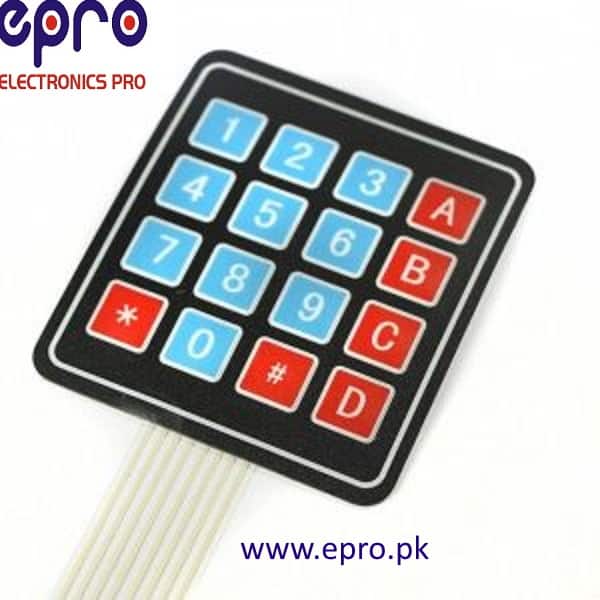
A 4×4 keypad pinout should be verified on the actual membrane keypad before it is connected to an Arduino. The eight-conductor ribbon carries row and column lines, and its order should not be guessed from a photograph of another panel.
This tutorial uses a passive sixteen-key matrix and a conventional Uno-compatible board. It prints harmless test characters to Serial Monitor. It is not a password lock, a secure PIN entry implementation or a promise of reliable simultaneous multi-key input.

1. Confirm that the keypad is passive
The 4×4 membrane matrix keypad is a switch matrix. A powered touch module with a controller chip is different hardware and needs its own interface instructions. Do not use this wiring for a board with an unrelated communication protocol.
Disconnect the passive keypad from all electronics before continuity testing. The ribbon is not arranged as supply, ground and data in the style of a sensor. Do not connect an arbitrary pair to 5 V and ground while trying to identify it.
2. Establish the 4×4 keypad pinout with continuity
Label the eight ribbon positions in a clearly recorded viewing direction. With a suitable meter, press one key and find the two conductors that become connected. Repeat across the first row and then down the other rows to identify which conductors belong to each group.
Create a small table of the four physical rows and four physical columns. A conductor shared by keys across one printed row belongs to that row; its paired conductors identify the columns. If the pattern does not resolve cleanly, check the meter setup and key pressure before powering anything.
3. Assign verified rows and columns to the Uno
| Verified matrix line | Uno digital pin |
|---|---|
| Rows 1, 2, 3, 4 | D9, D8, D7, D6 respectively |
| Columns 1, 2, 3, 4 | D5, D4, D3, D2 respectively |
This table names logical rows and columns after identification; it does not claim that ribbon positions one through eight always have that order. Keep D0 and D1 free for the Uno’s serial communication in this example.
With USB disconnected, connect the verified lines to the selected pins. The keypad scanning library handles the matrix signals. There is no separate VCC or GND connection to add to this passive eight-line matrix.Newest in the store


4. Install the Keypad library and upload
Install Keypad by Mark Stanley and Alexander Brevig through Library Manager. The library repository provides the matrix API used below. Match the character array to the actual printed arrangement on your keypad.
#include <Keypad.h>
const byte ROWS = 4;
const byte COLS = 4;
char keys[ROWS][COLS] = {
  {'1','2','3','A'},
  {'4','5','6','B'},
  {'7','8','9','C'},
  {'*','0','#','D'}
};
byte rowPins[ROWS] = {9, 8, 7, 6};
byte colPins[COLS] = {5, 4, 3, 2};
Keypad keypad = Keypad(makeKeymap(keys), rowPins,
                       colPins, ROWS, COLS);
void setup() {
  Serial.begin(9600);
}
void loop() {
  char key = keypad.getKey();
  if (key != NO_KEY) {
    Serial.println(key);
  }
}
5. Check all sixteen positions
Open Serial Monitor at 9600 baud and press one key at a time. Check digits, letters, star and hash. If a whole row or column gives wrong characters, review the corresponding pin order and the key map rather than randomly changing several wires.
If one line never responds, inspect its connection and continuity. If nothing responds, confirm the selected board, uploaded sketch and library, then recheck the matrix identification. A software character label cannot repair an open ribbon conductor.
6. Keep the first test single-key
Use separate presses and releases. A simple matrix without per-key isolation may not distinguish every simultaneous combination. Do not interpret a basic getKey example as proof of unrestricted rollover, anti-ghosting performance or a complete input-state machine.
For application behaviour such as long press, repeat or cancellation, design and test those states explicitly. Avoid entering real credentials into a diagnostic serial log; this example intentionally exposes each test character.
7. Expand only after the map is correct
Record the verified connector viewpoint and pin map for the finished project. The 4×4 matrix keypad buying guide explains pin budget, mounting and the difference from powered touch modules. Add displays or menus only after every key has a consistent, documented result.