


Vibration Sensor Arduino: SW420 Wiring and Event Code

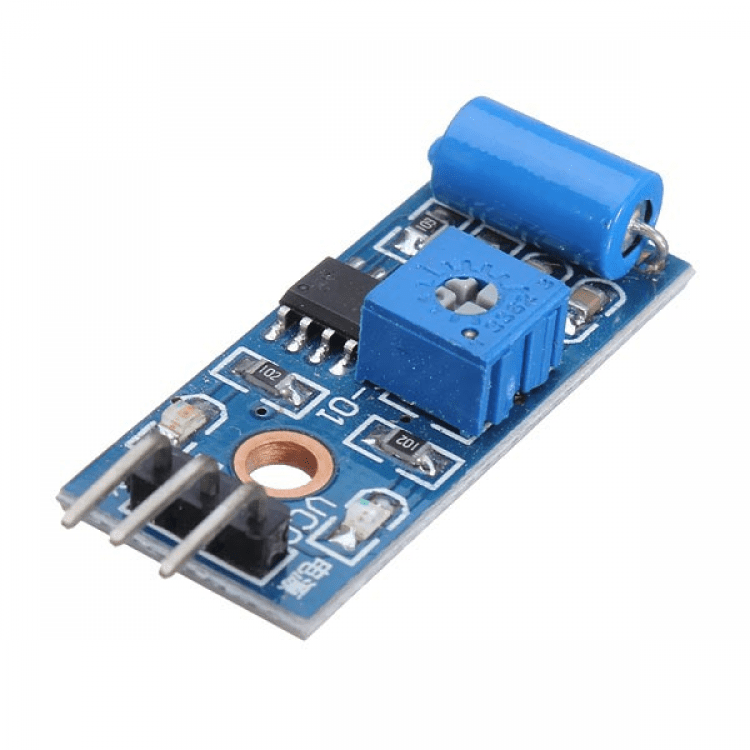
This vibration sensor Arduino demonstration uses an SW420 module to latch the Uno’s built-in LED briefly after a detected disturbance. It deliberately reports an event rather than an acceleration value or an exact number of physical impacts.
The example follows the Epro SW420 listing, which describes idle LOW and a momentary HIGH output on vibration. Confirm the actual board behaviour before choosing the interrupt edge. Similar-looking boards can invert that logic.

1. Wire the vibration sensor Arduino input
| Verified module pin | Conventional 5 V Uno |
|---|---|
| VCC | 5 V |
| GND | GND |
| DO or digital output | D2 |
Disconnect power while wiring and follow the actual module labels rather than a memorised connector order. D2 is used because it supports an external interrupt on a conventional Uno. Other boards can have different interrupt-capable pin assignments.
The Epro board’s supply specification is 3.3–5 V. That is not permission to connect a 5 V digital output to every 3.3 V controller. Review the actual interface if changing the controller or supply arrangement.
2. Check idle state and the event edge
Observe the output while the mounted board is still, then during a gentle disturbance. An idle LOW board with a HIGH pulse uses RISING for this example. An independently verified idle HIGH board with a LOW pulse instead needs FALLING.
The Grove SW-420 reference documents the opposite polarity from the Epro listing. It is useful evidence that the switch name alone does not establish a universal output truth table.
3. Upload the event-latch code
const byte SENSOR_PIN = 2;
const unsigned long HOLD_MS = 500;
volatile bool eventPending = false;
bool haveEvent = false;
unsigned long lastEventAt = 0;
void onVibrationEdge() {
  eventPending = true;
}
void setup() {
  Serial.begin(9600);
  pinMode(SENSOR_PIN, INPUT);
  pinMode(LED_BUILTIN, OUTPUT);
  // Epro listing: idle LOW, vibration HIGH. Verify your board first.
  attachInterrupt(digitalPinToInterrupt(SENSOR_PIN), onVibrationEdge, RISING);
}
void loop() {
  noInterrupts();
  bool pending = eventPending;
  eventPending = false;
  interrupts();
  unsigned long now = millis();
  if (pending) {
    bool alreadyLit = haveEvent && now - lastEventAt < HOLD_MS;
    lastEventAt = now;
    haveEvent = true;
    if (!alreadyLit) Serial.println("Vibration threshold event");
  }
  bool showEvent = haveEvent && now - lastEventAt < HOLD_MS;
  digitalWrite(LED_BUILTIN, showEvent ? HIGH : LOW);
}
The interrupt routine only sets a flag. It does not print text, delay or perform long work. The main loop briefly copies and clears that flag, then handles the visible response. Multiple edges can intentionally merge into one pending event.
Newest in the store


4. Interpret the LED and serial message correctly
A detected edge holds the LED on for 500 ms, and later edges extend the indication. A new serial message is printed only when a new visible indication begins, reducing repeated output during a burst.
This behaviour is not a debounce algorithm that guarantees one count per impact. The program does not even maintain an impact count. It is a clear indicator that the digital circuit produced at least one accepted edge during the observation period.
5. Adjust sensitivity after mounting
Fix the board to the intended harmless test surface before adjusting its potentiometer. Start with gentle, repeatable movement and compare it with the undisturbed condition. A loose board or moving jumper wire can create its own triggers.
Use a suitable adjustment tool without shorting nearby conductors. The potentiometer position is not a calibrated acceleration setting. If normal nearby movement causes unwanted indications, review both the mounting and response adjustment.
6. Troubleshoot without inventing measurements
For no response, verify supply, shared ground, the correct output pin and the actual idle/event polarity. For repeated responses, check whether the surface is still moving or the setting is too sensitive before blaming the program.
The SW420 vibration sensor buying guide explains why this device does not provide g, frequency spectra or seismic magnitude. Keep the demo on the built-in LED; it is not a validated machine shutdown, intrusion alarm or earthquake protection system.