


TM1637 Arduino: Wiring, Code and 7 Display Checks

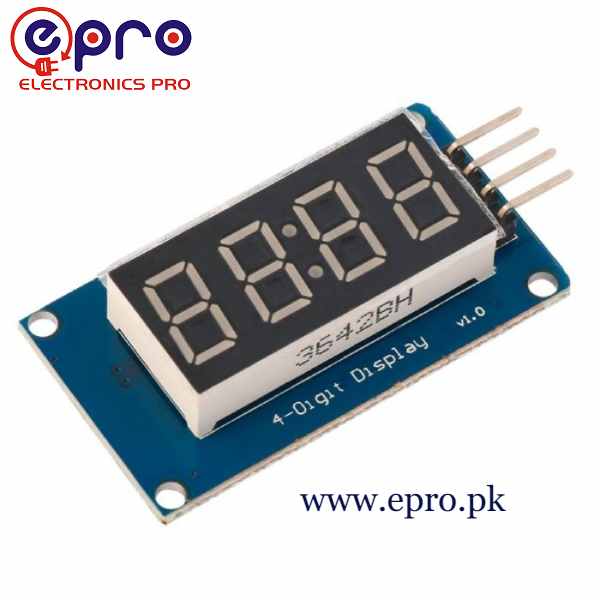
A TM1637 Arduino test can begin with a number that changes slowly on a four-digit module. A basic counter confirms wiring and formatting without introducing a real-time clock, sensor calibration or complex button handling.
This tutorial uses a conventional 5 V Uno-compatible board and a compatible 5 V display module. The example is a display demonstration, not an accurate elapsed-time instrument or a battery-backed clock.

1. Identify the actual connector labels
Locate VCC, GND, CLK and DIO on the TM1637 module. Work from the labels printed on the actual board, not the order of wires in another supplier’s photograph. Reversed power can damage the display.
Disconnect USB while assembling the circuit. Use short connections for the first test. Check that the board really is a TM1637 module; a bare seven-segment display with many leads needs a different driver arrangement.
2. Wire the TM1637 Arduino bench test
| Module pin | Conventional Uno connection |
|---|---|
| VCC | 5 V within the board’s available power budget |
| GND | GND |
| CLK | D3 |
| DIO | D2 |
The constructor in the code uses CLK first and DIO second. These are digital signal choices, not standard SDA and SCL assignments. A normal I2C scanner is therefore not the correct discovery test for this module.
Never supply the panel through D2 or D3. If the system has several peripherals, review their combined supply demand. Moving the circuit to a 3.3 V-only controller also requires checking bidirectional data levels and the module’s pull-ups.
3. Install the matching display library
Install TM1637 by Avishay Orpaz through Arduino Library Manager. The project documentation defines the TM1637Display class and its number, segment and brightness methods.
Several libraries use the same chip name. Verify that TM1637Display.h is supplied by the chosen library and do not add unrelated begin or init calls from a different implementation. Select the correct Uno board and port before uploading.Newest in the store


4. Upload a four-digit counter example
#include <TM1637Display.h>
const byte CLK_PIN = 3;
const byte DIO_PIN = 2;
TM1637Display display(CLK_PIN, DIO_PIN);
unsigned int value = 0;
void setup() {
  display.setBrightness(2);
}
void loop() {
  display.showNumberDec(value, true);
  delay(500);
  value++;
  if (value > 9999) {
    value = 0;
  }
}
The true argument requests leading zeros, so the first visible number is 0000 rather than a single zero. The value wraps after 9999 because this example deliberately uses the available four positive digit positions.
5. Check every digit and segment
Observe the count and confirm that values appear in the intended order. For a more thorough inspection, temporarily display representative numbers such as 1234 and 8888 using the library’s number method. A missing segment should be investigated before it becomes a misleading sensor value.
Keep brightness modest while testing. If the panel is blank, check the supply, common ground, connector labels and constructor order first. Do not assume a new library will repair a physically disconnected DIO wire.
6. Understand formatting and timing limits
A minus sign consumes a digit position, and decimal-point or colon support depends on the actual module. Plan the allowed range of the eventual displayed quantity. Provide an explicit error or overflow indication rather than silently showing an incomplete number.
The 500 ms delay is only a convenient demonstration pause. Program execution and oscillator tolerances mean the sketch should not be advertised as a precision timer. A responsive application usually schedules updates without blocking other inputs for the entire delay.
7. Add the application after the display passes
Once wiring and formatting are stable, add a sensor or button as a separate step. Decide whether leading zeros, units and sign are appropriate for the real information being shown. The TM1637 display buying guide explains punctuation, logic-voltage and clock-source considerations before the demonstration becomes a finished device.