


IR Sensor Arduino Connection: Wiring and Code Guide

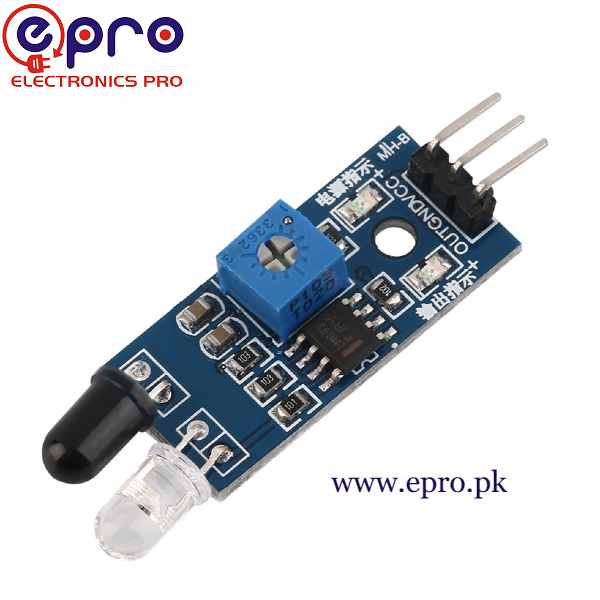
An IR sensor Arduino connection is easiest to verify when the only result is a serial message and a built-in LED. That keeps the first test focused on wiring and threshold behaviour rather than motor power or obstacle-avoidance logic.
This tutorial uses a conventional 5 V Uno-compatible board and a three-wire reflective obstacle module. It does not apply to a PIR motion detector, a remote-control receiver or a bare optical component that needs its own supporting circuit.

1. Check the three module labels
Find VCC, GND and OUT or SIG on the actual reflective obstacle sensor module. Connector order can differ from a photograph of another board. Disconnect USB before connecting or moving wires.
The module contains an emitter, receiver and threshold circuitry. Its digital output reports a state, not a distance in centimetres. The sensitivity adjustment changes the switching condition rather than providing a calibrated ranging scale.
2. Wire the IR sensor Arduino connection
| Module pin | Conventional Uno destination |
|---|---|
| VCC | 5 V for this rated module arrangement |
| GND | GND |
| OUT / SIG | D2 |
The Epro listing specifies 3.3–5 V module operation. This tutorial selects the 5 V Uno arrangement deliberately. A 5 V output or pull-up is not automatically safe for an ESP32 or another 3.3 V-only controller, so review the electrical interface before changing platforms.
Use short connections and check supply polarity before applying USB power. The built-in Uno LED is used as the indicator, avoiding the need to wire an external LED and its resistor during this first test.
3. Verify the output polarity
Many comparable modules report LOW when reflection crosses the detection threshold. The SunFounder module documentation describes that usual active-low arrangement for its own board.
Verify the behaviour of the module in hand instead of assuming every board is identical. The code keeps DETECTED_LEVEL as an explicit constant so the interpretation can be changed after observing the raw output.Newest in the store


4. Upload a change-only indicator sketch
const byte IR_PIN = 2;
const byte DETECTED_LEVEL = LOW;
int previous = -1;
void setup() {
  Serial.begin(9600);
  pinMode(IR_PIN, INPUT);
  pinMode(LED_BUILTIN, OUTPUT);
}
void loop() {
  int level = digitalRead(IR_PIN);
  bool detected = level == DETECTED_LEVEL;
  digitalWrite(LED_BUILTIN, detected ? HIGH : LOW);
  if (level != previous) {
    Serial.print("Raw OUT="); Serial.print(level);
    Serial.println(detected ? " threshold crossed" : " clear");
    previous = level;
  }
  delay(20);
}
Open Serial Monitor at 9600 baud. No extra sensor library is required for a module that already provides a suitable digital output. The sketch prints only on a state change and deliberately labels the result as a threshold state rather than a measured distance.
5. Adjust threshold with a repeatable target
Use a stable matte target at a consistent angle and adjust the onboard potentiometer gradually. Observe both the raw output and indicator. Do not force the control beyond its mechanical travel or assume its rotation is a linear distance setting.
Test the materials the project will actually encounter. Dark, glossy or angled surfaces can behave differently from the initial card. The Epro description contains inconsistent range wording, so this guide does not assign a guaranteed operating distance from that text.
6. Diagnose persistent or unstable states
If the reading never changes, check OUT wiring, supply, ground, threshold setting and target placement. If the output chatters, inspect ambient light and mechanical alignment before adding software filtering. Filtering can suppress rapid changes but cannot recover an object the sensor does not reliably detect.
Repeat the test under the expected lighting. A room test is not evidence of sunlight immunity. Keep the optical parts unobstructed and evaluate any proposed cover or enclosure window.
7. Add application logic separately
The delay and direct LED response are suitable for observation, not proof of a dependable stop system. The IR sensor buying guide explains reflectivity and environment limits. A robot needs deliberate motor-driver, timing and failure behaviour, and this hobby sensor must not be used as personal-safety protection.