


OLED Display: 7 Arduino Module Buying Checks

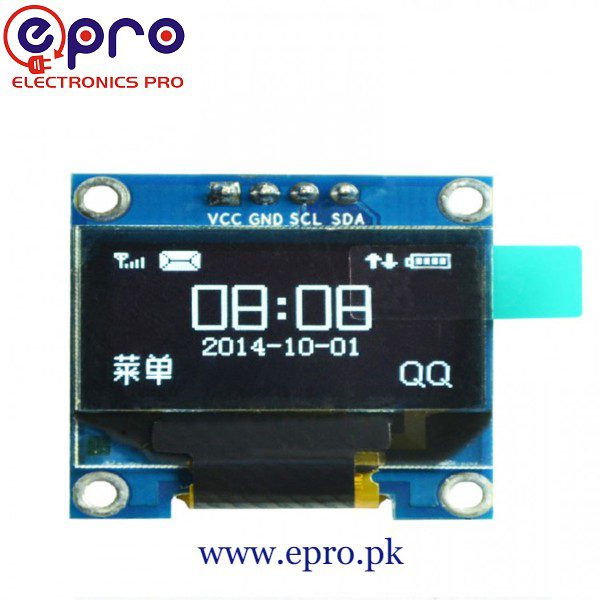
An OLED display can give a compact electronics project a readable status screen without a separate backlight. For a microcontroller build, however, the important choice is the complete module: controller, resolution, interface and power requirements. A phone replacement screen or television panel is a different product category.
This guide focuses on small Epro display modules for Arduino-style projects. It compares the published listings and identifies details to verify; it does not claim measured brightness, lifetime, viewing angle or power consumption for the supplied units.

OLED display module prices in Pakistan
| Listed item | Price (PKR) | Selection note |
|---|---|---|
| OLED 4 Pin Display for Arduino interface SSD1306 | 550 | 0.96-inch, 128 × 64, four-pin SSD1306 I2C listing |
| OLED SSD1306 I2C Display(128×32) Interfacing | 650 | 128 × 32 SSD1306 I2C listing |
| OLED 1.3 Inch Display Module 128X64 I2C Communicate 4Pin SSD1106 Bluetext Color | 950 | 1.3-inch listing; confirm controller and pin count |
Price snapshot: Epro product listings checked on 18 October 2026. Prices and availability can change. Confirm the live listing, delivery charges and supplied accessories before ordering; these figures are not a quotation or a claim of independent product testing.
The 1.3-inch listing contains inconsistent wording about pin count and identifies its controller differently from SSD1306. Ask for a photograph of the actual supplied board and confirmation of its controller before choosing software. Do not silently assume every small monochrome screen uses the same driver.
1. Match the controller to a supported library
SSD1306 and similarly marketed controllers are not automatically interchangeable at the command or memory-layout level. A display can acknowledge an I2C address and still show an offset or blank image with the wrong driver. Confirm the controller from authoritative product information rather than screen size alone.
The four-pin SSD1306 module is the reference product for the companion tutorial. The Adafruit SSD1306 library supports appropriate monochrome 128 × 64 and 128 × 32 displays, but is not a universal library for every OLED panel.
2. Choose resolution for the information
A 128 × 64 screen has more vertical space for menus or several readings than a 128 × 32 screen. Physical diagonal size and pixel count are separate properties: a larger diagonal does not necessarily provide more pixels. Sketch the longest labels and values before buying.
A simple temperature or clock display may need only a few lines. A detailed dashboard can become cramped even with a larger font library. Do not assume a stock screenshot demonstrates that your own language, symbols and layout will fit.
3. Check I2C versus SPI connections
A typical four-pin I2C module exposes power, ground, SDA and SCL. An SPI module uses a different signal arrangement and commonly needs additional control pins. Pin count is a useful clue, but labels and the exact board design take precedence.Newest in the store


I2C saves signal pins and can share a bus with compatible peripherals that have distinct addresses. SPI can suit other wiring and performance requirements. Choose the interface your controller and project actually support, rather than buying one and hoping a cable adapter changes the protocol.
4. Verify voltage and bus pull-ups
The reference module listing supports a range that includes 3 V to 5 V supply operation. That does not establish that every similarly named board has the same regulator or signal-level arrangement. In particular, identify what voltage the I2C pull-up resistors use before connecting a 3.3 V-only controller.
For an Uno demonstration with the correctly rated module, follow the I2C OLED wiring and code guide. For an ESP32, review the bus voltage and pin map separately. Never infer GPIO tolerance solely from the display’s supply-voltage range.
5. Allow memory for the frame buffer
A monochrome 128 × 64 frame buffer contains 1,024 bytes before library and application overhead. A 128 × 32 buffer needs 512 bytes. On a small controller such as a classic Uno, that is a meaningful part of available SRAM. Fonts, strings, sensor libraries and other buffers also consume memory.
If a minimal display sketch works but a combined project fails, memory pressure may be the cause. Avoid adding large bitmaps or many RAM-resident strings without checking the complete application.
6. Confirm mounting and package contents
Check board dimensions, mounting holes, header orientation and whether soldering is required. Keep pressure off the glass and provide strain relief for wires. A product photograph may show a development board or cable that is not part of the display package.
7. Start with a simple, changing screen
Show short text first, then integrate sensor values after the display works independently. Avoid needlessly leaving a fixed bright image on a screen for long periods; OLED pixels can age unevenly. The SSD1306 tutorial covers address selection, initialization and the common missing display-update call.